Browser Push Notifications Give Scammers a Way to Keep Reaching You
- Joseph Miller
- 938 reads
A browser permission can turn a quiz or clickbait visit into a stream of deceptive alerts. Here’s how the scheme works and how to stop it.

A notification permission can give a scammer a way to reach you long after you leave a website. The messages may look like device warnings, financial alerts or messages from family members, even though they began with a click on an ordinary looking quiz or article.
Browser push notifications are a standard feature. A site asks for permission, and if you grant it, the site can send messages through your browser later. Depending on the browser and device settings, alerts may appear when you aren’t actively viewing the site. That ongoing access to your attention is what makes the feature useful to scammers.
Two investigations illustrate the approach: a quiz-site operation and an operation that HUMAN Security researchers named Pushpaganda. Their methods differed, but both used a website visit to persuade people to enable notifications, then used those notifications to deliver unrelated messages.
One permission, repeated chances to deceive
A deceptive page usually gets only the time a visitor spends there to make its pitch. Notification access changes that. A site can send more messages later, creating repeated opportunities to draw someone back to a page, promote an offer or get a click on a harmful link.
The alerts can also borrow the appearance of the browser or device interface. A message about a virus or missed payment may feel more credible when it arrives as a system notification, even though its text and imagery were chosen by the website. And because the alert arrives after the original visit, people may not remember which site received permission.
That gap between the first click and the later message is useful to scammers. A visitor might have agreed to notifications while trying to start a quiz, then see a frightening warning hours or days afterward. The warning can prompt a visit to another site, an unwanted download or an attempt to pay for a problem that doesn’t exist.
Granting notification access does not, by itself, install malware. The danger comes from what a notification encourages someone to do. That distinction can explain why a device displays alarming alerts while a malware scan finds no infection: the messages may be coming from a website permission, rather than software installed on the device.

From quiz prompt to ongoing alerts
In the quiz-site investigation, published March 9, customers contacted support because they thought their devices were infected. Malwarebytes scans did not find malware. Screenshots helped the support team trace the alerts to browser notifications.
The quizzes themselves worked. The deception was in how the site presented the permission request. After a visitor chose “Start the quiz,” the browser displayed its notification prompt while the webpage added its own instruction: “Click ‘Allow’ to continue.” That wording made permission look like a requirement for taking the quiz. In practice, clicking “Allow” signed the visitor up for future messages.
The browser’s prompt is a meaningful boundary: it asks whether a site may send notifications. But the surrounding webpage can misrepresent what that choice does. A request to enable notifications just to read a story, view a video or take a quiz should therefore raise suspicion, especially on a site you don’t know.
Pushpaganda scaled the same basic tactic
HUMAN Security’s Satori researchers described Pushpaganda on April 14. Rather than quiz pages, the operation drew visitors with sensational articles and images, some of which showed signs of AI generation. The headlines promoted attention grabbing financial claims or implausible technology bargains. The content appeared in Google Discover feeds, putting it in front of Android and Chrome users. Researchers could not determine whether the placements came from paid promotion or search optimization.
After a visitor reached an associated site, the page asked them to allow notifications. Later alerts could have little connection to the story that attracted the visitor. Researchers saw messages posing as arrest warrants, financial warnings and missed calls from “Mom” or other family members.
The shift from clickbait to unrelated alerts matters. A reader might expect follow-up messages about an article, but the permission allows the website to send notifications that serve a different purpose. Once granted, that access can support advertising, affiliate promotions, fraudulent offers or attempts to drive people toward unwanted downloads.
What the activity figures show
User reports tracked by Scam Guard showed weekly reports associated with quiz-site notification abuse and Pushpaganda. Those counts represent reports classified from information users provided. They do not show the number of unique victims, confirmed infections or the full scale of either operation.
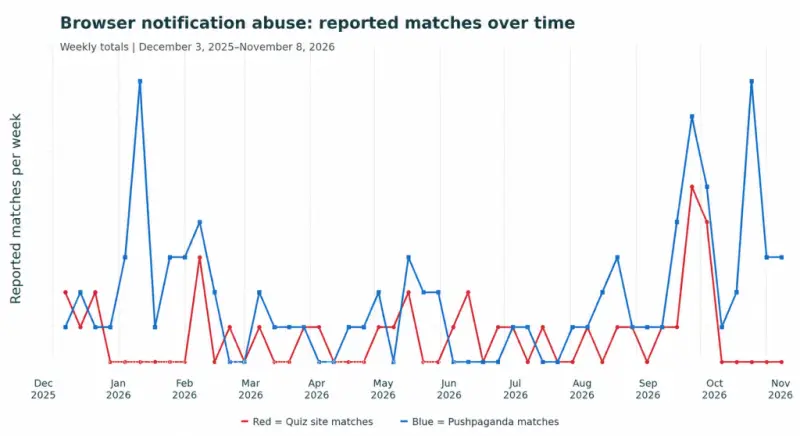
HUMAN Security’s researchers also observed roughly 240 million advertising bid requests associated with Pushpaganda domains in a single seven day period at the operation’s peak. In online advertising, a bid request asks advertisers to compete for the chance to show an ad. In a notification ad auction, a selected ad can be delivered as a notification to someone who has granted permission.
That figure describes bid requests, not people reached or notifications successfully delivered. It does, however, indicate that the operation was connected to a large volume of advertising activity. A drop in reports after an investigation becomes public may not be permanent; the people behind such operations can rebuild infrastructure when they expect it to pay off.
Review permissions and remove unwanted alerts
Allow notifications only when you want continuing messages from a website. Be cautious when an unfamiliar page says you must click “Allow” to proceed. The browser prompt grants permission for future notifications; it doesn’t simply advance a quiz or open a video. Browser protection tools such as Malwarebytes Browser Guard can also help block malicious websites.
If unwanted alerts appear, check which website sent them and revoke that site’s permission. Most browsers let you review notification settings and block individual sites. You don’t need to open a link in a suspicious alert to manage the permission.
On supported Android devices, Chrome notifications may include an Unsubscribe control. Swipe down from the top of the screen to open the notification shade, find the alert and tap Unsubscribe if the option appears. Chrome also offers Undo if you unsubscribe by mistake.
If there’s no unsubscribe option, open Chrome and go to More > Settings > Site settings > Notifications. Review the sites with permission and block the one sending unwanted alerts. As these operations show, a notification that looks urgent may be the delayed result of a permission granted during an unrelated visit. Checking that permission is a practical first step before treating the alert as evidence that your device is infected.